How do I turn on a Gmail vacation responder?
Turn on Vacation responder, insert branded HTML with html2email’s </> button, set dates, Save Changes. No Gmail API required.
Key takeaways
- ✓ Vacation responder lives on Settings → General, under Signature.
- ✓ html2email adds </> on the vacation message toolbar (same idea as Signature).
- ✓ Keep the OOO short: dates, backup contact, optional logo. Tables + inline CSS only.
- ✓ Save Changes is mandatory. Auto-replies usually fire once per sender while enabled.
To set a beautiful HTML vacation auto-response in Gmail, install html2email, open Settings → General, enable Vacation responder, click </> in the message toolbar, insert your out-of-office HTML (template or upload), then Save Changes. Raw tag paste still shows as text; Insert renders it.
What is Gmail Vacation responder?
Vacation responder (out-of-office / auto-reply) sends a fixed message when someone emails you. You set a start date, optional end date, subject, and body. Google’s Help Center notes replies usually go out once per person while the feature is on; spam and many list messages are skipped.
Plain text works fine for a quick “I’m away.” HTML lets you match brand colors, add a logo, and highlight a backup contact like a proper email, not a notepad line.
Where do I turn on Vacation responder in Gmail Settings?
Open Gmail, click the Settings gear, choose See all settings, and open the General tab. Scroll to Vacation responder and turn it on.
Set First day and optional Last day, add a subject and message, and choose whether to send only to people in your contacts or to everyone. html2email inserts the HTML body through the </> button in the message toolbar. Do not include a <title> element in your HTML because Gmail prints it as a visible line above the auto-reply.
Scroll to the bottom of Settings and click Save Changes when you are done.
What subject line and message should I use?
Short subject lines work best. Examples:
- Out of office until September 30
- Away until Monday, October 6
- On vacation: limited email access
Plain-text message example:
Thanks for your email. I am out of the office until September 30 with limited access to email. For urgent matters, contact Jordan Lee at [email protected] or (555) 123-4567. I will reply when I return.
Designed HTML versions with branded layouts are in the free out-of-office email generator. Insert them with html2email’s </> button instead of pasting raw tags.
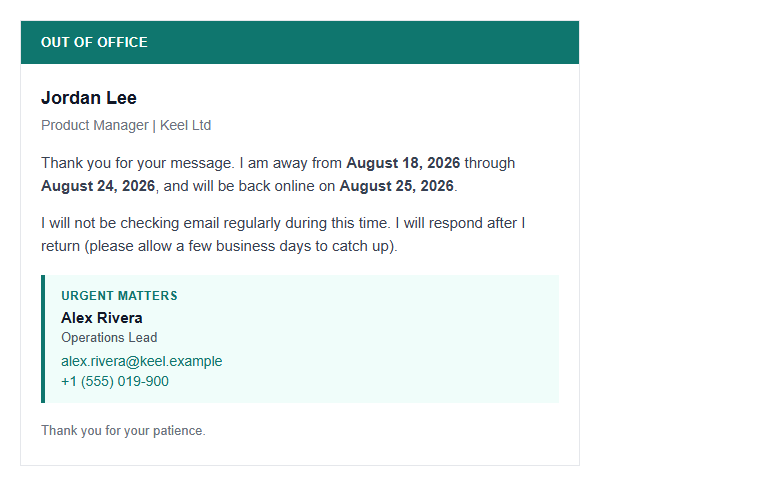
Jordan Lee out-of-office card: return date, backup contact, and branded layout.
Can Gmail vacation messages use HTML?
Yes in the web Settings editor. Same constraint as HTML signatures: paste source and you see tags. Developers can push responseBodyHtml via the Gmail API (VacationSettings). For day-to-day use, html2email’s </> Insert is enough.
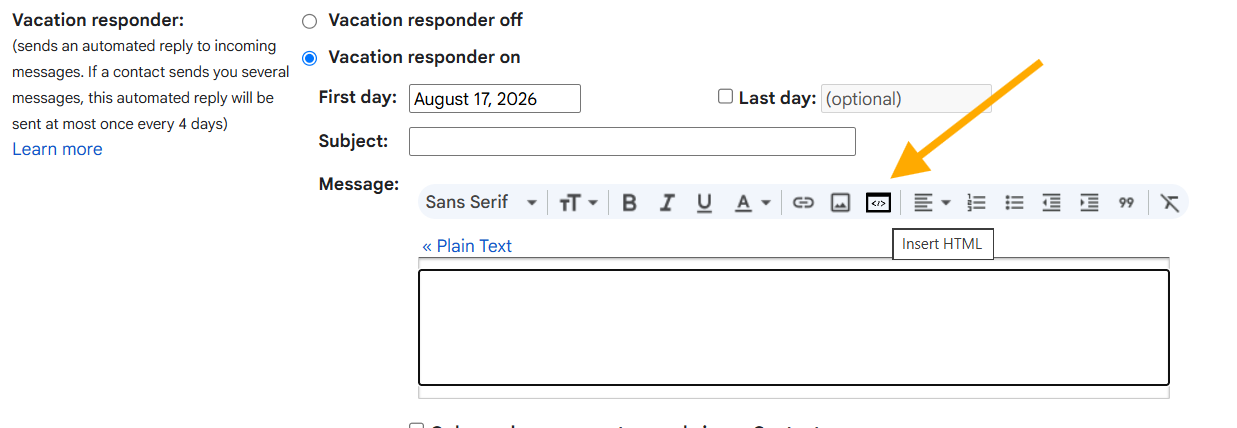
Gmail Settings → Vacation responder: the </> Insert HTML button from html2email in the message toolbar.
How do I insert an HTML vacation template with html2email?
- Install html2email (Gmail/Yahoo) and reload mail.google.com.
- Gear → See all settings → General → Vacation responder → On.
- Set First day / Last day and a clear subject (e.g. “Out of office until Aug 25”).
- Click </> in the vacation message toolbar.
- Templates, Edit HTML, or Upload HTML → Preview → Insert. Search ooo or vacation for built-in Simple / Professional / Advanced.
- Optional: Contacts only / domain only.
- Save Changes at the bottom of the page.
In our product tests, the Settings attach path mirrors Signature: button on the rich-text toolbar after the image control when present. Always save manually; the extension does not click Save Changes for you.
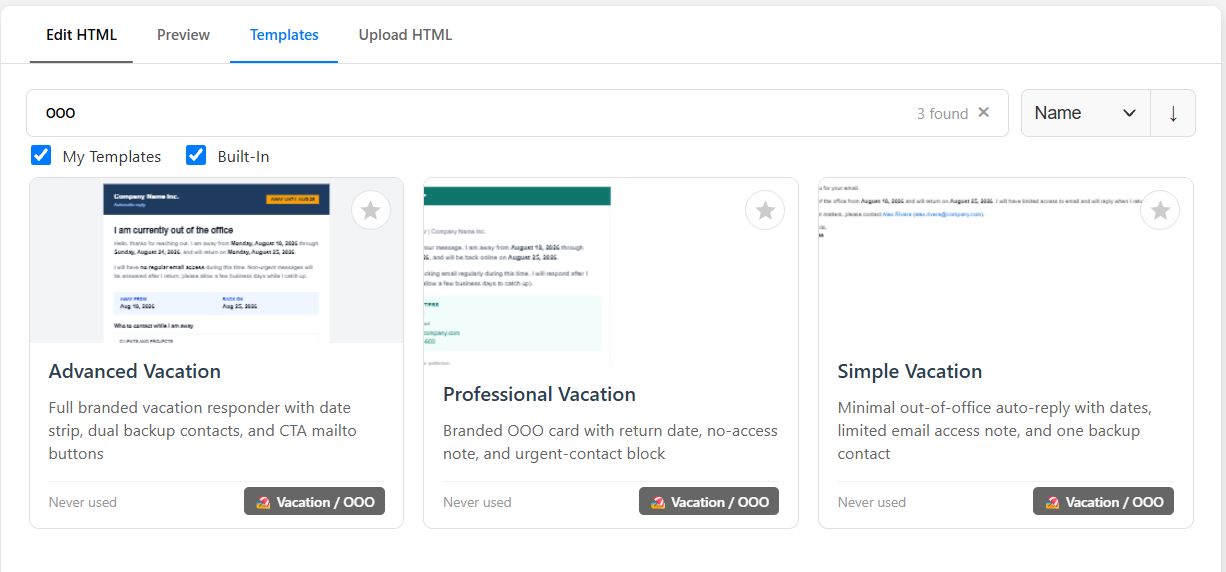
Templates tab: search “ooo” to list Advanced, Professional, and Simple Vacation / OOO layouts.
What should a beautiful OOO HTML template include?
Keep the layout narrow (about 600px), table-based, inline styles. Example content block:
- Headline: “Out of office” + return date.
- One sentence on response delay.
- Backup person: name, email, phone.
- Optional logo (HTTPS URL) and one CTA link (calendar booking or status page).
- No forms, no JS, no heavy animations.
You can start from a simple branded template in html2email, strip promo sections, and leave dates + backup contact. Same stack as other HTML email: inline CSS, hosted images, web-safe fonts.
How does vacation auto-reply behave?
| Topic | Behavior |
|---|---|
| Frequency | Typically once per sender while enabled; may repeat after ~4 days or if you edit the message. |
| Subject field | Filled subject often sends as a separate message instead of nesting in the thread. |
| Audience | Optional Contacts-only; Workspace can limit to your domain. |
| Spam / lists | Spam and many mailing-list messages do not get the reply. |
| Account age | Google may require the account to be at least 24 hours old before Vacation works. |
Source: Gmail Help – automatic reply when you’re out of office.
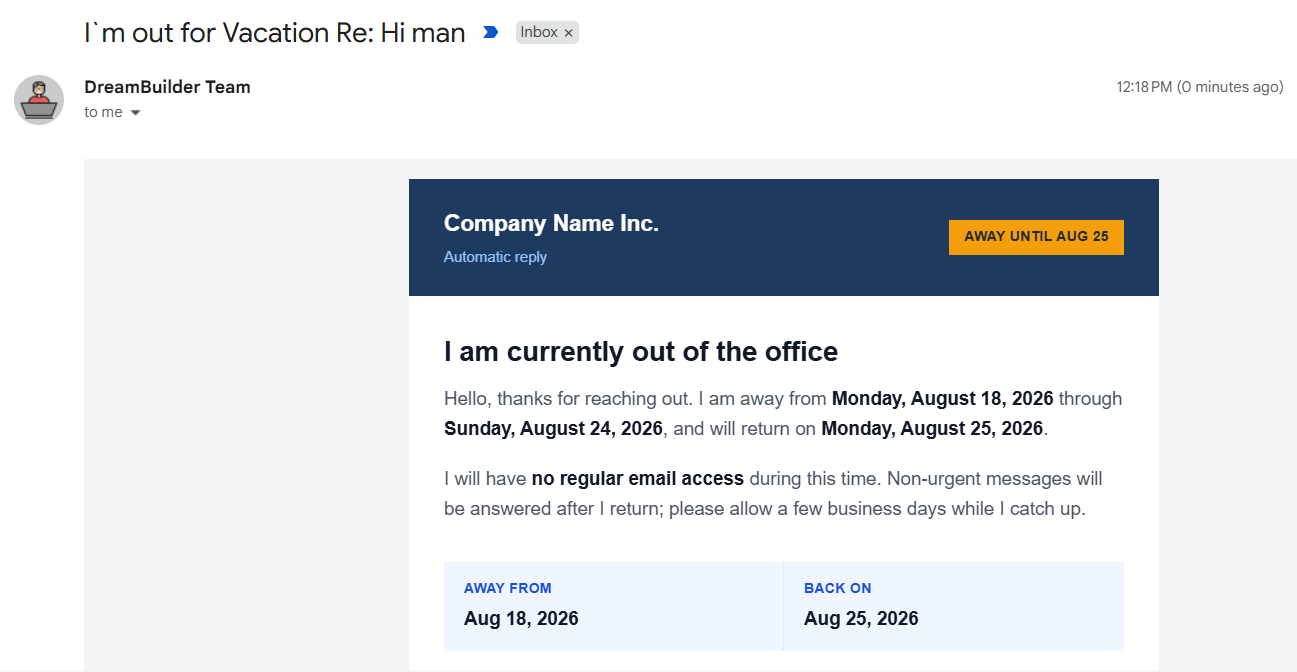
Received HTML vacation auto-reply in Gmail (Advanced Vacation template).
Design tips for HTML out-of-office
- Put the return date in the first line and in the subject.
- One backup contact beats three “in case of emergency” blocks.
- Host logos on HTTPS; skip Drive share links.
- Preview in html2email before Insert; send a test from another account while Vacation is on.
- Turn Vacation off when you’re back, or set Last day so it expires.
Common mistakes
Pasting raw HTML. Use </> Insert.
Forgetting Save Changes. The editor looks updated until you leave.
Empty subject + long thread noise. Add a subject so the OOO stands alone.
Giant newsletter HTML. Auto-replies should stay light; recipients skim them in seconds.
Conclusion
A beautiful HTML vacation auto-response in Gmail is Settings → Vacation responder → </> → Insert → Save Changes. Pair a short branded template with clear dates and a backup contact. Same html2email flow as signatures; no API required for personal use. When you’re back, turn the responder off and keep your HTML signature as the everyday footer.
Frequently asked questions
Related resources
Ready for HTML vacation replies?
Install html2email and insert OOO HTML from Gmail Settings
 Gmail/Yahoo - Free
Free plan available · See pricing