Email Preheader Text: Length, Examples & HTML
What email preheader text is, how long it should be in Gmail and Outlook, and the HTML pattern for hidden preview text that raises open rates.
Key Takeaways
- ✓ Preheaders are the preview text shown after the subject line in inboxes.
- ✓ They act as a "second subject line" to boost open rates.
- ✓ You can hide them in the email body using simple CSS.
- ✓ html2email validates preheader structure and shows an inbox-style preview before you send.
An HTML email preheader (also known as preview text) is the short summary text that follows the subject line when an email is viewed in the inbox. It provides context to the recipient before they open the message, acting as a "second subject line" that can significantly influence open rates.
What is an email preheader exactly?
Technically, the preheader is the very first text found in the HTML body of your email. Email clients like Gmail, Outlook, and Apple Mail automatically pull this text and display it next to or below the subject line in the inbox view.
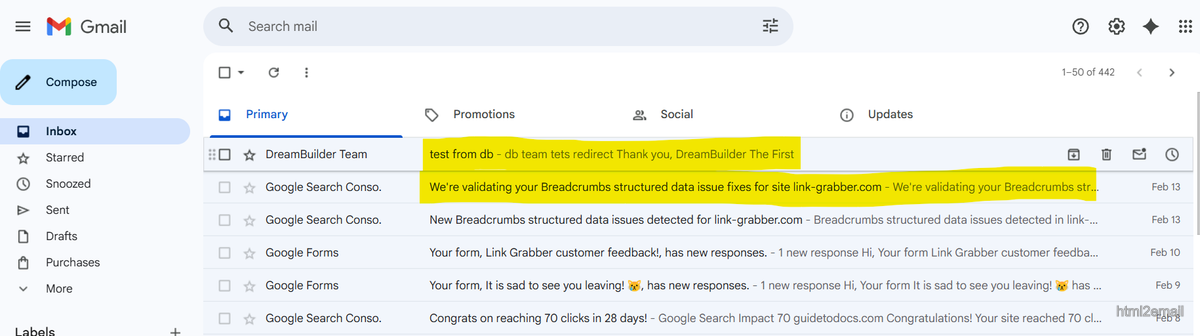
Inbox view showing subject line and preheader preview text.
If you don't define a custom preheader, the email client will grab whatever text appears first-often resulting in unhelpful snippets like "View in browser," "Unsubscribe," or image alt text.
Why does preheader text matter?
Preheaders are a critical component of modern email marketing for several reasons:
- Increased Open Rates: A compelling preheader can boost open rates by up to 7% by adding context or urgency to the subject line.
- Mobile Optimization: On mobile devices, the subject line is often truncated. The preheader takes up valuable screen real estate, offering a second chance to hook the reader.
- Professionalism: Custom preheaders look intentional and polished, whereas "View this email in your browser" looks like an oversight.
| Scenario | Typical impact |
|---|---|
| Custom preheader (e.g. short benefit) | Up to ~7% higher open rate |
| No preheader / "View in browser" | Wasted preview space; less context |
Why custom preheader text matters.
How long should email preview text be?
Gmail often shows about 90 characters on desktop after the subject line, and fewer on mobile where the subject itself may truncate first. Aim for 40-90 characters of useful preview text: enough to add context without getting cut mid-sentence.
If your preheader is too short, clients may append the next visible body text (such as “View in browser”). Use the white-space hack below when you need to fill the preview window without repeating the subject.
How to add a hidden preheader in HTML?
Ideally, you want your preheader text to be visible in the inbox preview but hidden when the user actually opens the email, so it doesn't clutter your design.
To do this, insert a <div> or <span> with specific CSS styles at the
very top of your email's <body> tag.
<!-- Hidden Preheader Text -->
<div style="display:none;font-size:1px;max-height:0px;overflow:hidden;">
  This is the text that will appear in the inbox preview but not in the email body.
</div>
← These styles hide the block in the opened email; clients still use its text for the inbox preview.
<body style="margin:0; padding:0;">
  <!-- Preheader: first element so clients grab it for inbox preview -->
  <div style="display:none; max-height:0; overflow:hidden;">
    Your preview text here.
  </div>
  <table>...rest of email...</table>
</body>
← Place the hidden preheader block first inside
<body> so clients use it in the inbox.
Why these styles?
display:none: Hides the element from most browsers.max-height:0px; overflow:hidden: Ensures it takes up no space ifdisplay:noneis stripped.font-size:1px; color:#333333: Fallbacks to make the text invisible or tiny if other styles fail.
The "White Space" Hack
Sometimes, if your preheader is short, the email client will still pull the next text (like "View in browser")
and show it immediately after your custom text. To prevent this, you can add a chain of "Zero Width
Non-Joiners" (‌) and non-breaking spaces ( ) to push the unwanted
text out of the preview window.
What are email preview text best practices?
Front-load the offer or the one detail that matters most. Do not repeat the subject line word for word. Place your hidden preheader block before any “View in browser” link or unsubscribe line so those strings never become the inbox preview.
To get the most out of your preview text, follow these guidelines:
- Length: Keep it between 40 and 130 characters. Too short, and other text might leak in; too long, and it will get cut off.
- Complement the Subject: Don't just repeat the subject line. If the subject is "Sale starts today!", the preheader should be "Get 50% off all shoes until midnight."
- Include a Call to Action: Encourage the click right from the inbox.
- Don't start with "View in browser": Always ensure your custom preheader comes before any utility links.
What are good email preheader examples?
Pair each preheader with a subject that does not repeat the same words:
- Shipping notice: “Your order #4821 ships today. Track delivery inside.”
- Newsletter: “Three tips to cut inbox clutter this week.”
- Out of office: “Back March 4. For urgent items, contact Alex.”
- Product update: “New dashboard filters save time on weekly reports.”
How to check if your preheader works?
Validating your email structure manually can be tedious. It's easy to forget the hidden div, mess up the CSS, or miss that a long subject line eats your preview text in Gmail.
The html2email Chrome extension covers both sides: structure checks and a visual inbox preview.
Preheader Validator
The built-in Preheader Validator checks your HTML before you send. It looks for:
- A
<div>or<span>as the first child of the body. - Presence of hiding styles like
display: noneorfont-size: 0. - The specific class name
preheader.
If you forget to include a preheader, the extension alerts you so you do not waste inbox preview space.
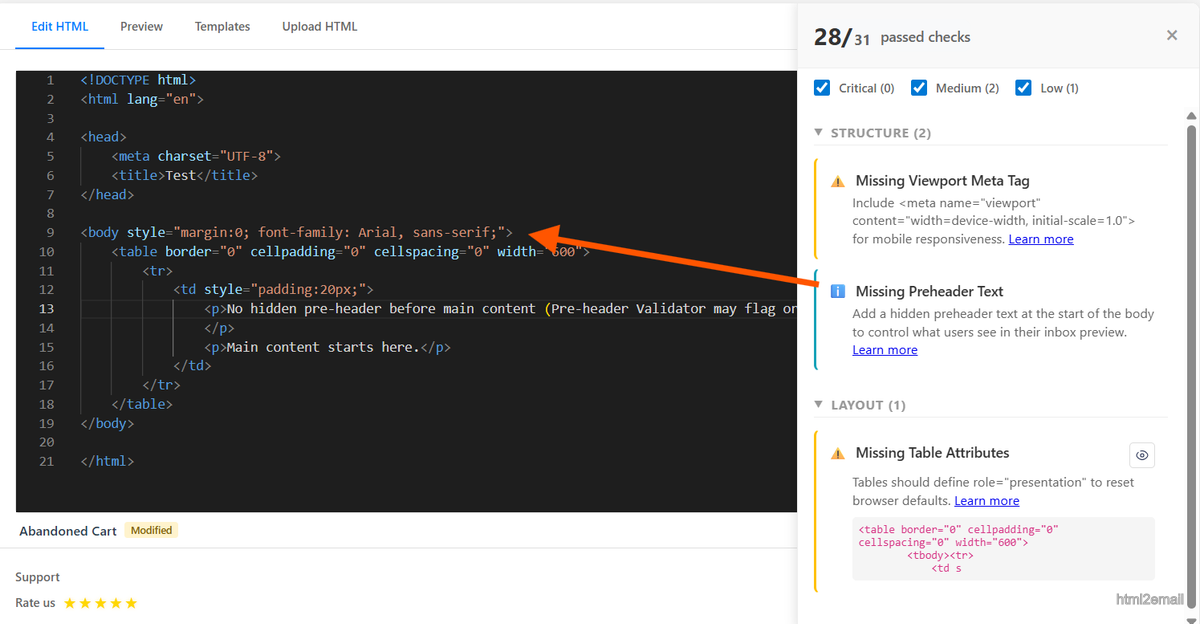
html2email Preheader Validator checking for a hidden preheader block.
Inbox preview (how it looks in Gmail)
Existence checks are not enough. You also want to see the subject + preheader line the way Gmail truncates it. On the Preview tab, click the eye icon to open Inbox preview.
The dialog shows a Gmail-like inbox row and color-codes three parts:
- Subject — editable in the dialog so you can test how a longer subject eats the snippet.
- Preheader in HTML — hidden preview text found at the start of the body.
- Body text in snippet — visible body text Gmail may append when the preheader is short or missing.
If no preheader is found, Inbox preview flags it and links to this guide so you can add one before you insert the HTML into compose.
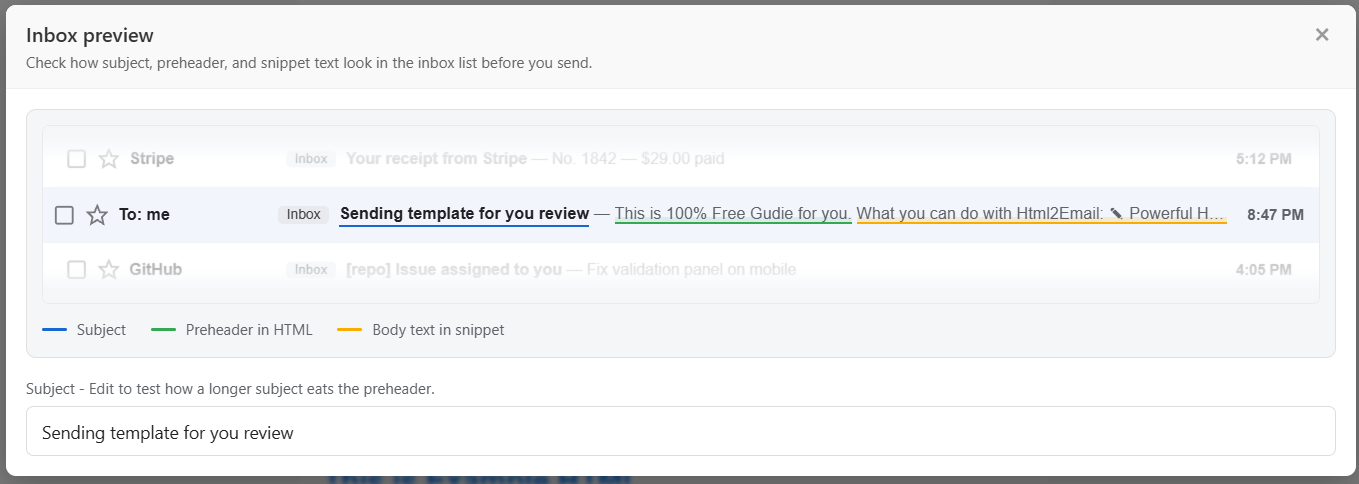
Inbox preview in html2email: subject, preheader, and body snippet highlighted like a Gmail list row.
Conclusion
The HTML email preheader is a small but mighty tool in your email marketing arsenal. By adding a simple hidden code snippet to the top of your emails, you can control exactly what recipients see in their inbox, driving higher engagement and more professional communication.
Start adding preheaders to your templates today, and use html2email to validate the markup and preview the inbox line before you send.
Frequently Asked Questions
Related Resources
Optimize Your Emails Today
Send validation-checked HTML emails directly from your browser.
 Gmail/Yahoo - Free
Free plan available · See pricing